

The workbench
The DataKlin window has the same parts on macOS, Windows and Linux. On macOS the title bar below is the window’s own title bar; on Windows and Linux the window keeps its usual frame, title and menu bar, and the same bar sits just below them. Every main action is a drawn button with a tooltip that names its shortcut. The context menu and the command center repeat actions, but they are never the only way to do something.
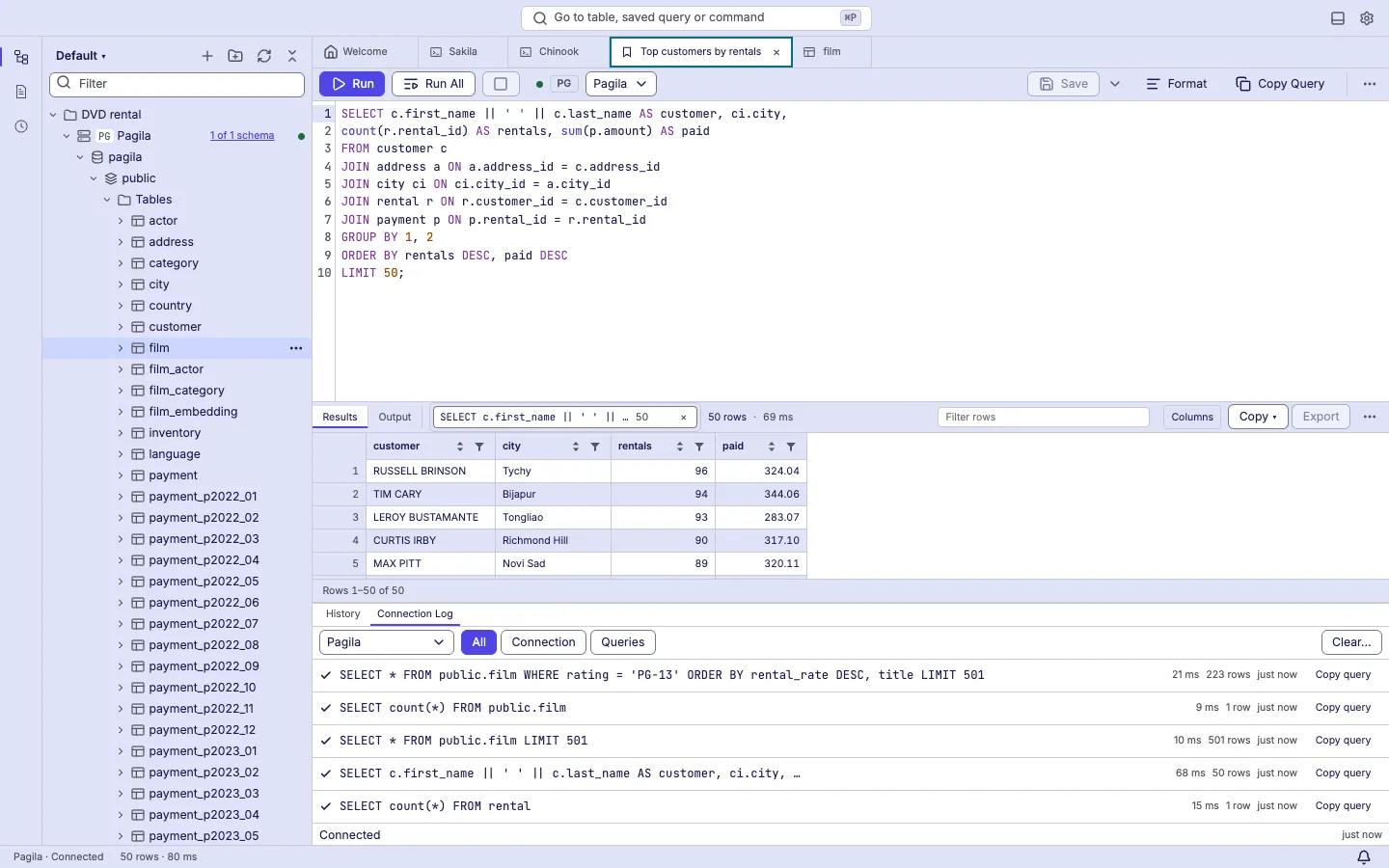
The parts of the window
Section titled “The parts of the window”| Part | What it holds |
|---|---|
| Title bar | The command center box in the middle, with the placeholder Go to table, saved query or command. At the right: a button that shows or hides the bottom panel, and Open Settings. Drag the title bar to move the window. |
| Activity rail | The views: Database Explorer, Saved Queries and History. Click a view to show it in the sidebar. Click the active view again to hide the sidebar. |
| Sidebar | The current view. Its header has the workspace name at the left and the view’s actions at the right, always drawn as buttons. |
| Editor area | Tabs: consoles, table data, definitions, Settings and Welcome. |
| Bottom panel | History and Connection Log. Show or hide it with Ctrl+J (Cmd+J on macOS). |
| Status bar | The active tab’s connection and its state, its schema, Read-only while it’s on, notifications (the bell) and update notices. |
New Connection isn’t on the activity rail. It’s in the Database Explorer’s header, in the File menu, on the Welcome tab and in the command center.
Each tab shows an icon for what it is and a bar in its connection’s color, so you can tell a production console from a development one. Hover a tab to close it, or middle-click it. Drag tabs to reorder them. When there are too many to fit, a menu lists the open tabs.
- A dot on a tab means a saved query has changes you haven’t saved. See The console and saved queries.
- Right-click a tab, or press Shift+F10, for Close, Close Others, Close to the Right, Close All and Copy Name.
- Reopen Closed Tab (Ctrl+Shift+T, Cmd+Shift+T on macOS; also in the File menu and the command center) brings back the tab you closed last, with its content. DataKlin remembers the last 10.
- Welcome is a normal tab. It shows on first start and when no other tab is open. Choose Help › Welcome to open it again. It has three cards (New Connection, Open the sample database and Open SQLite File…), your recent workspaces, a few keys worth knowing, a color scheme switch and the version.
The command center
Section titled “The command center”Click the box in the title bar, or press Ctrl+P (Cmd+P on macOS). One search covers your connections, the tables, views and routines DataKlin already knows about on every connection of the workspace, your saved queries, and commands. It doesn’t connect to search: results from a disconnected connection come from what DataKlin saw the last time it was connected, and opening one connects first.
- Results are in groups: Connections, Tables and views, Routines, Saved queries and Commands. Each group shows five results until you type more than two characters.
- Enter opens the result: a table or view opens its data, a routine opens its definition, a saved query opens in a console, and a connection shows in the Database Explorer and connects. Ctrl+Enter (Cmd+Enter on macOS) opens a new console on that connection with the name typed in.
- Ctrl+Shift+P (Cmd+Shift+P on macOS), or typing
>, shows commands only, each with its shortcut. The commands you used most recently come first. - A command that needs a target, such as Move to Folder…, asks for it in a second step in the same box.
- When nothing matches, the box says what it searched and how to load more objects: expand a connection in the Database Explorer to load its objects.
Notifications
Section titled “Notifications”The bell at the right end of the status bar shows how many notifications you haven’t read, and opens the list. DataKlin shows at most three toasts at once, and one notice per event. A connection that fails raises one notification with Reconnect and Show log. See Idle disconnect and the Connection Log.
Workspaces
Section titled “Workspaces”The workspace’s name is at the left of the sidebar header. Click it to switch workspaces. See Workspaces and saved queries.