

SQLite
DataKlin connects to SQLite database files on your computer through its built-in SQLite connector, so there is nothing else to install. DataKlin doesn’t sign in to anything: a file needs no user name or password, and it is not encrypted by DataKlin: it is read straight from your disk, so what protects it is your computer’s own file permissions. You can open an existing file, create a new one, drop a file onto the DataKlin window, or attach up to 10 more files to one connection.
Supported versions Built in
- Read-only session
- SQL completion
- Drag and drop
Connect
Section titled “Connect”-
Open New Connection. Click New Connection in the header of the Database Explorer, choose File › New Connection…, or press Ctrl+K, then Ctrl+N (Cmd+K, then Cmd+N on macOS). Getting started lists every way to open it. Or drag a
.db,.sqlite,.sqlite3or.db3file onto the DataKlin window: the dialog opens with the file filled in, and you can skip to step 4. -
Choose SQLite. Type
sqlitein Search connectors… and press Enter, or double-click SQLite. -
Pick or create the file. In Database file, type the full path, or click Browse… to pick the file. To start a new database, click Create new… and choose where to save it; this ticks Create the file if it doesn’t exist. You can paste a connection URL instead.
-
Check Options. Tick Open file read-only to make sure nothing can change the file, and add attached databases if you need more files in one connection.
-
Test the connection. Click Test connection. When it works, the result shows beside the button. When it doesn’t, the reason shows, with Copy details. Once the connection is saved, Show Connection Log shows the full log.
-
Save. Click Save, or Save and connect to connect at once. The connection appears in the Database Explorer.
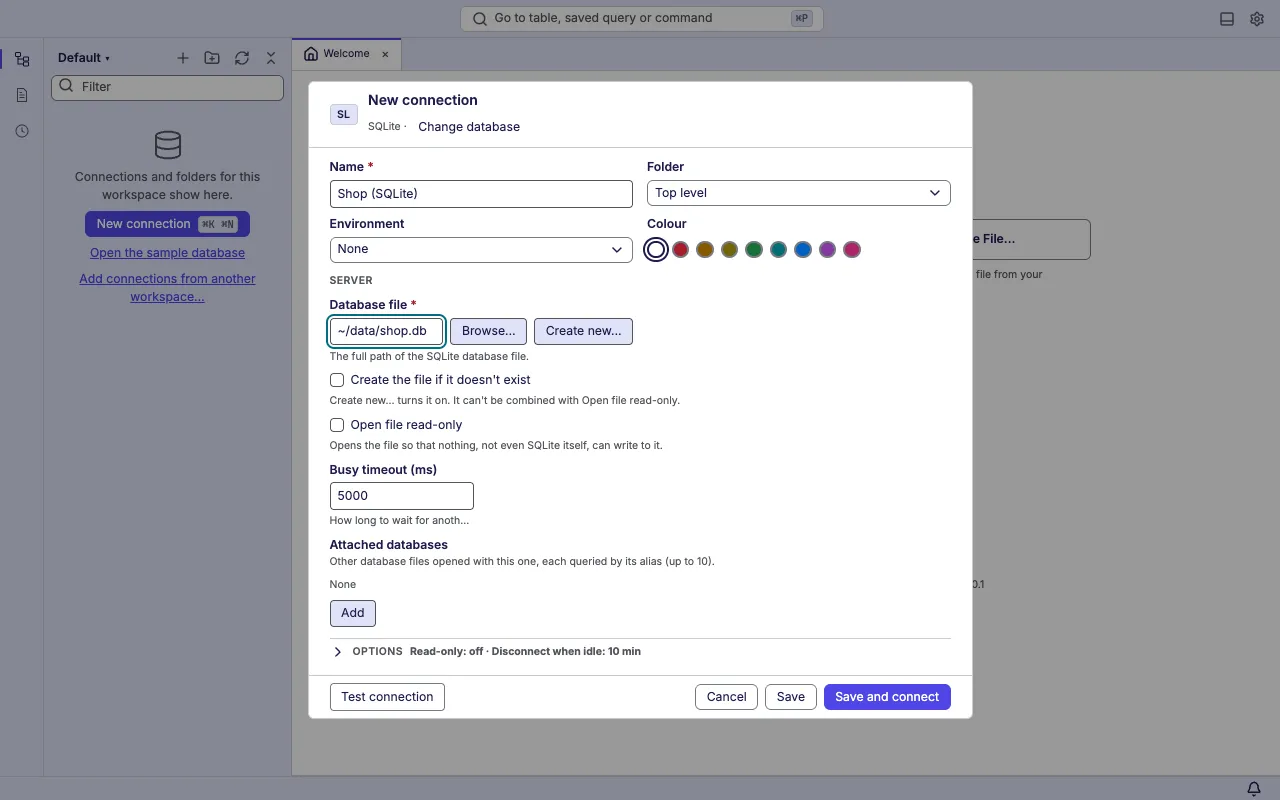
Connection fields
Section titled “Connection fields”The Connection section at the top (Name, Folder, Environment and a color) is the same for every database: see Getting started. The fields below are SQLite’s own. Options is the collapsed section at the bottom of the dialog.
Server
Section titled “Server”| Field | What it does | Default | Example |
|---|---|---|---|
| Database fileRequired | The full path of the SQLite database file. Accepts .db, .sqlite, .sqlite3 and .db3 files. Browse… picks a file, Create new… saves a new one, and dropping a file onto the window fills it in. | None | ~/data/shop.db |
| Create the file if it doesn't exist | Create new… turns it on. It can't be combined with Open file read-only. | Off | Off |
| Open file read-only | Opens the file so that nothing, not even SQLite itself, can write to it. | Off | Off |
| Busy timeout (ms) | How long to wait for another program's lock on the file before giving up. From 0 to 600000. | 5000 | 5000 |
| Attached databases | Other database files opened with this one, each queried by its alias (up to 10). Click Add Attached database for each file. Each has an Alias and a File. Up to 10. | None | Alias aux, File ~/data/archive.db |
Options
Section titled “Options”The Read-only checkbox is described under Good to know, next to Open file read-only.
| Field | What it does | Default | Example |
|---|---|---|---|
| Disconnect when idle | Close this connection after it has sat unused. Reconnects on your next action. Choose Use default, Never, or After… and a number of minutes. | Use default | Never |
Attached databases
Section titled “Attached databases”Click Add Attached database to open up to 10 more files with the main one. Give each an Alias and a File, then query its tables by the alias, such as aux.notes. The alias is the schema name: it starts with a letter or an underscore and holds letters, digits and underscores. The Database Explorer lists each attached database. When the main file is opened read-only, the attached files are too, and an attached file is never created.
Connection string
Section titled “Connection string”Paste a sqlite: URL into the first step of the dialog, and DataKlin offers to fill in the Database file from it. Nothing changes until you click Fill fields. There is no host: write three slashes, then the absolute path.
sqlite:///home/app/data/shop.db- Write a path on Windows with the drive letter after the slashes, such as
sqlite:///C:/data/shop.db. - A query after the path is dropped and listed as not applied. A path with a fragment (
#) is refused, and so is a network path.
Authentication and TLS
Section titled “Authentication and TLS”A SQLite file has no sign-in and no TLS, so DataKlin offers no authentication method or TLS mode for it. Access is whatever your computer’s file permissions give you. See TLS and certificates for the engines that do encrypt their connections.
Try it locally
Section titled “Try it locally”There is no server to start. Create a database file from DataKlin:
- Open New Connection and choose SQLite.
- Click Create new…, name the file
shop.dband save it somewhere you can find again. - Click Test connection, then Save and connect.
- Open a console on the connection and run:
CREATE TABLE notes (id INTEGER PRIMARY KEY, body TEXT);INSERT INTO notes (body) VALUES ('hello');SELECT * FROM notes;| Field | Value |
|---|---|
| Database file | shop.db, in the folder you chose |
| Create the file if it doesn’t exist | On, set by Create new… |
Good to know
Section titled “Good to know”- Two kinds of read-only. Open file read-only opens the file so that nothing, not even SQLite itself, can write to it; writes fail with an error, and only reconnecting undoes it. It can’t be combined with Create the file if it doesn’t exist. A read-only connection is different: DataKlin refuses writes before they run and also puts the SQLite session into query-only mode, and you can switch it off again. See Read-only connections.
- Destructive statements ask first.
DROP, andDELETEorUPDATEwithout aWHERE, ask for confirmation before they run, and a protected environment such as Production always asks. See Confirming destructive statements. - SQL completion. The console completes table, column and function names as you type, from the file’s own schema.
- Busy timeout. If another program holds a lock on the file, DataKlin waits up to the Busy timeout (ms) before it gives up.