Table data
Double-click a table, view or materialized view in the Database Explorer, select it and press Enter, or right-click it and choose Open Data. Its rows open in a tab, a page at a time. Open Data works for PostgreSQL, MySQL, SQLite and Cassandra. Each table has one data tab, and closing the tab closes its session.
The header
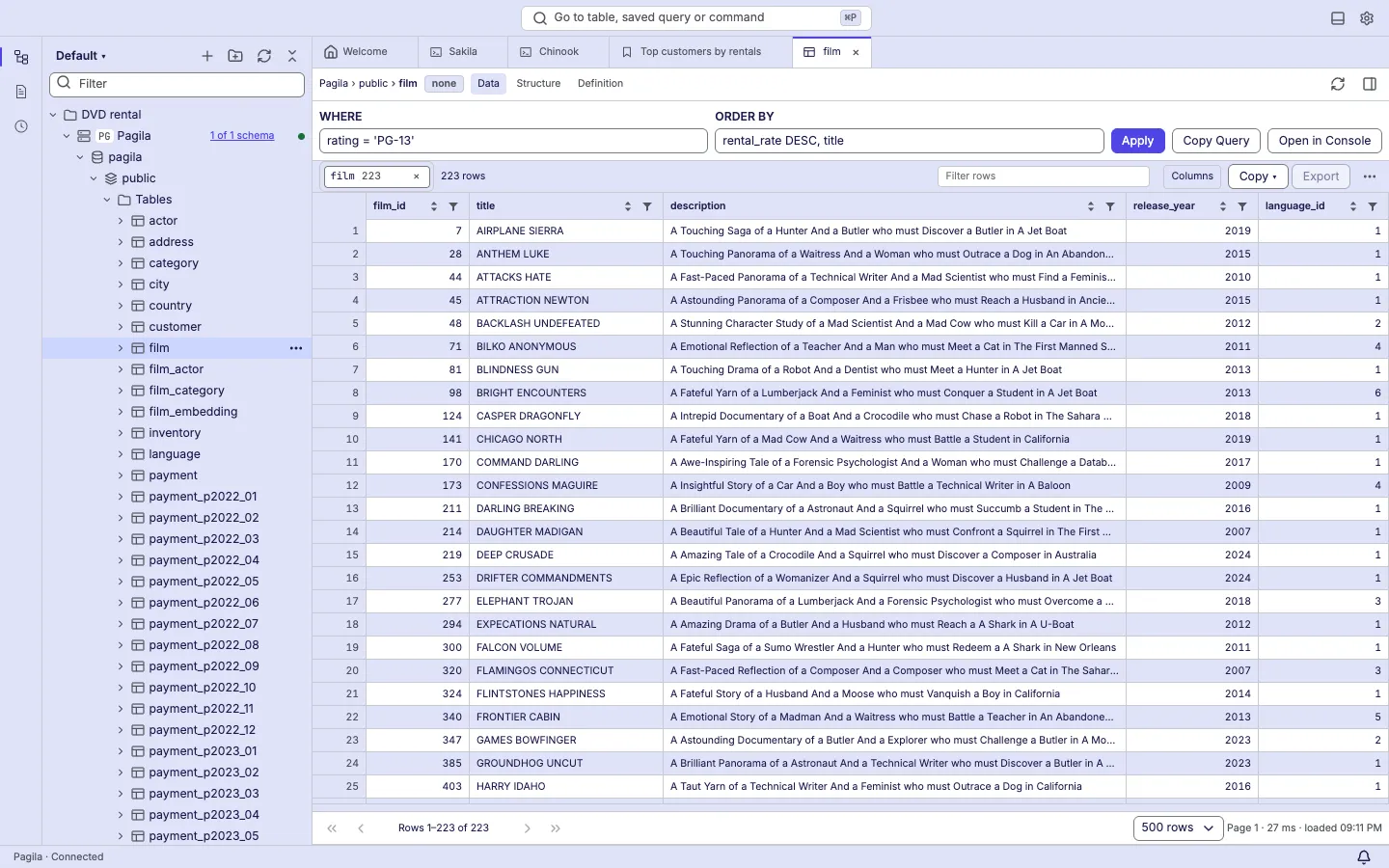
Section titled “The header”The header shows connection › schema › table, the environment badge and a switch between Data, Structure and Definition. At the right: Refresh (press Ctrl+R, or Cmd+R on macOS), Copy (see Results), Columns and a toggle for the row detail panel.
Filter and sort
Section titled “Filter and sort”Under the header is a filter row:
- WHERE takes a condition, for example
status = 'shipped' AND total > 100. - ORDER BY takes the sort, for example
created_at DESC. Click a column header to fill it in. - Apply (Enter) loads the page again with them.
- Copy Query copies the statement DataKlin runs, and Open in Console opens a console holding it, so you can edit it.
Both fields take SQL fragments and complete column names. Right-click a cell and choose Filter by This Value to fill in WHERE.
Filter and sort are always done by the database, so they apply to the whole table and not only to the rows you can see. DataKlin builds one SELECT … WHERE … ORDER BY … LIMIT … OFFSET … statement for the page, quoted for the database you connect to, and it runs only if the result is exactly one read statement. If what you typed isn’t, nothing runs and the filter row says why.
The footer has the pager: first, previous, Rows 501–1,000 of about 1.2 million, next and last. Press Ctrl+Alt+Left or Ctrl+Alt+Right (Cmd+Option+Left or Right on macOS) to change page. The footer also shows Page 2 · 42 ms · loaded 18:43.
- Rows per page is 500 by default. Choose 100, 500, 1,000 or 5,000 in the chip in the footer for this tab, or for every tab in Settings › Results.
- Cassandra pages forward only, so it offers Next and First.
- Refresh loads the current page again with the same filter and sort. The old rows stay until the new ones arrive.
The row count
Section titled “The row count”DataKlin never counts a large table on its own. When the database estimates fewer than 50,000 rows, the count is exact. Above that, the footer says about 1.2 million, from the database’s own statistics. Click Count exactly to run COUNT(*); you can cancel it. The 50,000 limit is Count exactly below in Settings › Results.
Structure and definition
Section titled “Structure and definition”Choose Structure to see the table’s columns (name, type, whether it allows NULL, default and key), its indexes and its foreign keys, in read-only tables. Choose Definition to see its DDL in a read-only editor, with Copy. In a definition, Ctrl+C (Cmd+C on macOS) with nothing selected copies the whole definition.
Row detail
Section titled “Row detail”The row detail toggle opens a panel beside the grid that lists the selected row’s fields one under the other, with their full values and types. Copy as JSON copies the row.
When the connection is down
Section titled “When the connection is down”If you disconnect the connection, it goes idle, or it drops, Refresh, paging and Apply connect again first and then run. While that happens the button reads Reconnecting…, the status bar shows Connecting… and the old rows are dimmed, with Cancel offered. If the connection asks for its password every time, DataKlin asks for it and then carries on.
If reconnecting fails, you get one message where the rows would be: Couldn’t reconnect to the connection’s name, why, and what to do, with the server’s message in monospace and Retry, Edit connection, Show Connection Log and Copy details. If a transaction was open when the connection dropped, the action doesn’t run: the server rolled the transaction back, and DataKlin offers Reconnect.
A first load that takes more than 0.3 seconds shows placeholder rows, and Cancel after a second. An empty table, a filter that matches nothing and a statement with no result each say so in their own words.