

PostgreSQL
DataKlin connects to PostgreSQL 14 and later through its built-in PostgreSQL connector. It signs in with a password, with AWS IAM or with AWS Secrets Manager, and encrypts the connection with TLS: a new connection to a remote server uses Full verification, which checks that the server’s certificate comes from a trusted authority and names the server. Amazon Aurora PostgreSQL and Amazon RDS for PostgreSQL connect through the same connector.
Supported versions PostgreSQL 14 and later
- TLS
- Read-only session
- SQL completion
- AWS IAM
Connect
Section titled “Connect”-
Open New Connection. Click New Connection in the header of the Database Explorer, choose File › New Connection…, or press Ctrl+K, then Ctrl+N (Cmd+K, then Cmd+N on macOS). Getting started lists every way to open it.
-
Choose PostgreSQL. Type
postgresin Search connectors… and press Enter, or double-click PostgreSQL. For Aurora or RDS, choose Amazon Aurora PostgreSQL or Amazon RDS for PostgreSQL instead: see Amazon Aurora and RDS. -
Fill in the Server section. Enter the Host and the User, the only required fields. Port and Database start at
5432andpostgres. Type the Password, and choose next to it how long DataKlin keeps it. You can paste a connection URL instead. -
Check Security. Open Security to choose the Authentication method and the TLS mode. A remote host starts at Full verification;
localhostisn’t encrypted. See Authentication and TLS. -
Test the connection. Click Test connection. When it works, the server version and time show beside the button. When it doesn’t, the reason shows, with Copy details. Once the connection is saved, Show Connection Log shows the full log.
-
Save. Click Save, or Save and connect to connect at once. The connection appears in the Database Explorer.
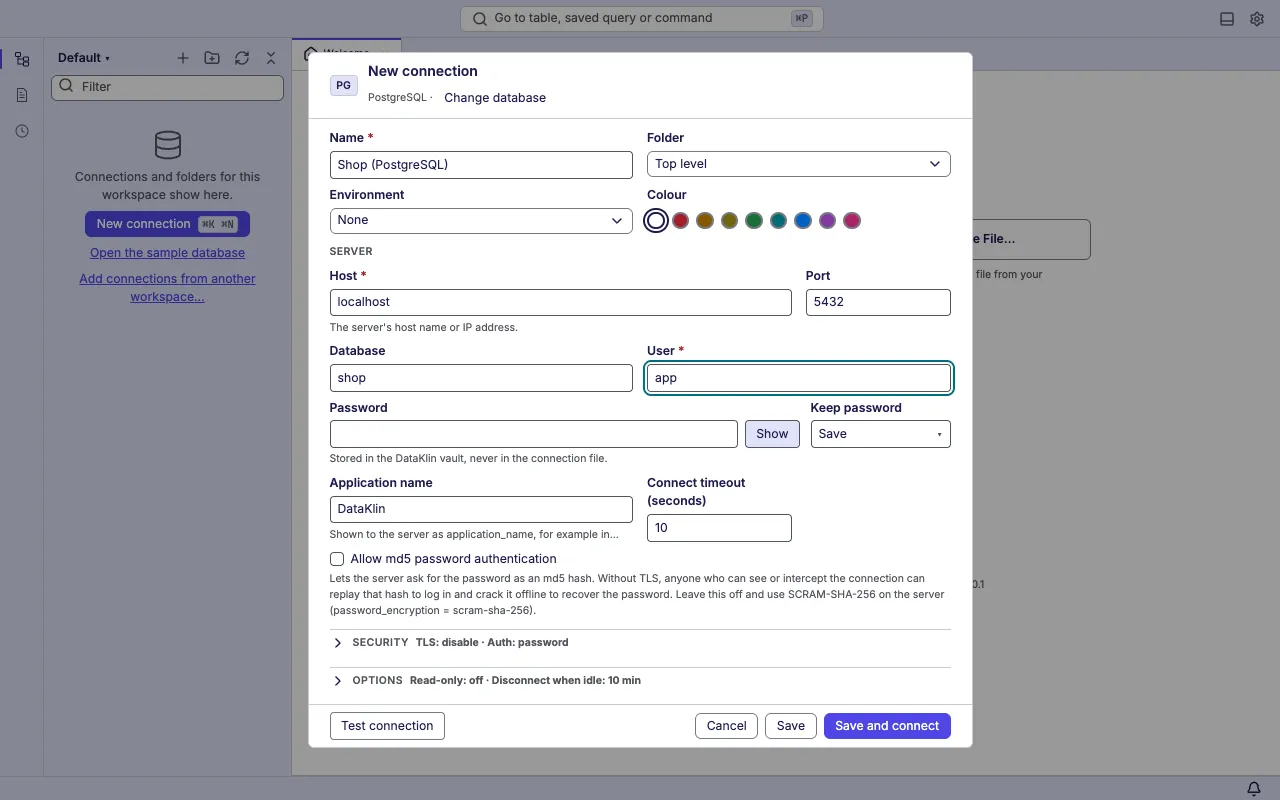
Connection fields
Section titled “Connection fields”The Connection section at the top (Name, Folder, Environment and a color) is the same for every database: see Getting started. The Server and Authentication fields below are PostgreSQL’s own, and all of them are in the dialog’s Server section; the sign-in fields are listed apart. Options is the collapsed section at the bottom of the dialog.
Server
Section titled “Server”| Field | What it does | Default | Example |
|---|---|---|---|
| HostRequired | The server's host name or IP address. | None | db.example.com |
| Port | The TCP port the server listens on. From 1 to 65535. | 5432 | 5432 |
| Database | The database the connection opens. | postgres | shop |
| Application name | Shown to the server as application_name, for example in pg_stat_activity. | DataKlin | DataKlin |
| Connect timeout (seconds) | How long to wait for the server before the connection fails. From 1 to 3600. | 10 | 10 |
Authentication
Section titled “Authentication”| Field | What it does | Default | Example |
|---|---|---|---|
| UserRequired | The database role to sign in as. | None | app |
| PasswordPassword auth | Stored in the DataKlin vault, never in the connection file. Shown with the Password authentication method. Next to it, Keep password chooses how long DataKlin keeps it: Save, Until DataKlin quits or Ask every time. | None | — |
| Allow md5 password authentication | Lets the server ask for the password as an md5 hash. Without TLS, anyone who can see or intercept the connection can replay that hash to log in and crack it offline to recover the password. Leave this off and use SCRAM-SHA-256 on the server (password_encryption = scram-sha-256). | Off | Off |
Options
Section titled “Options”| Field | What it does | Default | Example |
|---|---|---|---|
| Read-only | Mark this connection as one that should not change data. DataKlin then refuses writes and schema changes before they reach the database. Choosing a protected environment, such as Production, ticks it for you. | Off | On |
| Disconnect when idle | Close this connection after it has sat unused. Reconnects on your next action. Choose Use default, Never, or After… and a number of minutes. | Use default | Never |
Connection string
Section titled “Connection string”Paste a postgres:// or postgresql:// URL into the first step of the dialog or into the Host field, and DataKlin offers to fill in the fields from it. Nothing changes until you click Fill fields.
postgres://app@localhost:5432/shoppostgresql://app@db.example.com/shop- A password in the URL goes into the Password field only, and is never written to a log.
- Query options such as
sslmodearen’t applied. DataKlin lists each one by name, and calls out those that would read a file or weaken TLS. Set TLS in the Security section instead. - Write an IPv6 host in brackets, such as
postgres://app@[::1]:5432/shop.
Authentication and TLS
Section titled “Authentication and TLS”Open Security to choose how DataKlin signs in. The Authentication method is one of:
- Password (the default): the User and Password fields. Passwords are kept as Secret storage describes.
- AWS IAM: a short-lived token from your AWS credentials instead of a password, for Aurora and RDS. See AWS IAM authentication and AWS credentials.
- AWS Secrets Manager: the user name and password are read from a secret each time DataKlin connects. See AWS Secrets Manager.
The TLS mode is one of Disable, Require, Verify CA and Full verification. A new connection to a remote host uses Full verification; one to localhost, 127.0.0.1 or ::1 isn’t encrypted. With TLS on you can also choose a CA certificate, a Client certificate, the Server name and the Minimum TLS version. TLS and certificates explains each mode and certificate.
Try it locally
Section titled “Try it locally”No server to hand? Start PostgreSQL in Docker:
docker run --name dataklin-postgres -d -p 5432:5432 \ -e POSTGRES_USER=app -e POSTGRES_PASSWORD=app-password -e POSTGRES_DB=shop \ postgres:18Then connect with these values:
| Field | Value |
|---|---|
| Host | localhost |
| Port | 5432 |
| Database | shop |
| User | app |
| Password | app-password |
| TLS mode | Disable, the default for localhost |
When you’re done, remove the container with docker rm -f dataklin-postgres.
Good to know
Section titled “Good to know”- Read-only sessions. On a read-only connection, DataKlin refuses writes and schema changes, and also puts the PostgreSQL session itself into read-only mode, which catches a
SELECTof a function that changes data. See Read-only connections. - Destructive statements ask first.
DROP,TRUNCATE, andDELETEorUPDATEwithout aWHEREask for confirmation before they run, and a protected environment such as Production always asks. See Confirming destructive statements. - SQL completion. The console completes schema, table, column and function names as you type. It reads them through the Database Explorer’s own session: it never connects for you and never reads inside your open transaction.
- Cancel. Cancel stops a long query on the server, and the session stays usable.