

Amazon DynamoDB
DataKlin connects to Amazon DynamoDB and to DynamoDB Local through its built-in DynamoDB connector. It signs in with the AWS credentials you choose in DataKlin, or with no credentials for DynamoDB Local on your computer, such as at http://localhost:8000, and nothing secret is saved with the connection. AWS endpoints use https, and http is accepted only for an endpoint on your computer.
Supported versions Amazon DynamoDB and DynamoDB Local
- AWS credentials
- Query and Scan builder
- PartiQL completion
Connect
Section titled “Connect”-
Open New Connection. Click New Connection in the header of the Database Explorer, choose File › New Connection…, or press Ctrl+K, then Ctrl+N (Cmd+K, then Cmd+N on macOS). Getting started lists every way to open it.
-
Choose Amazon DynamoDB. Type
dynamoin Search connectors… and press Enter, or double-click Amazon DynamoDB. -
Set the Region and endpoint. Enter the Region of your tables, such as
eu-west-1. Leave Endpoint URL empty for AWS, or enter the address of DynamoDB Local. -
Choose the credentials. Open Security and choose the Authentication method. See Authentication and TLS.
-
Test the connection. Click Test connection. When it works, the Region and the number of tables show beside the button. When it doesn’t, the reason shows, with Copy details. Once the connection is saved, Show Connection Log shows the full log.
-
Save. Click Save, or Save and connect to connect at once. The connection appears in the Database Explorer.
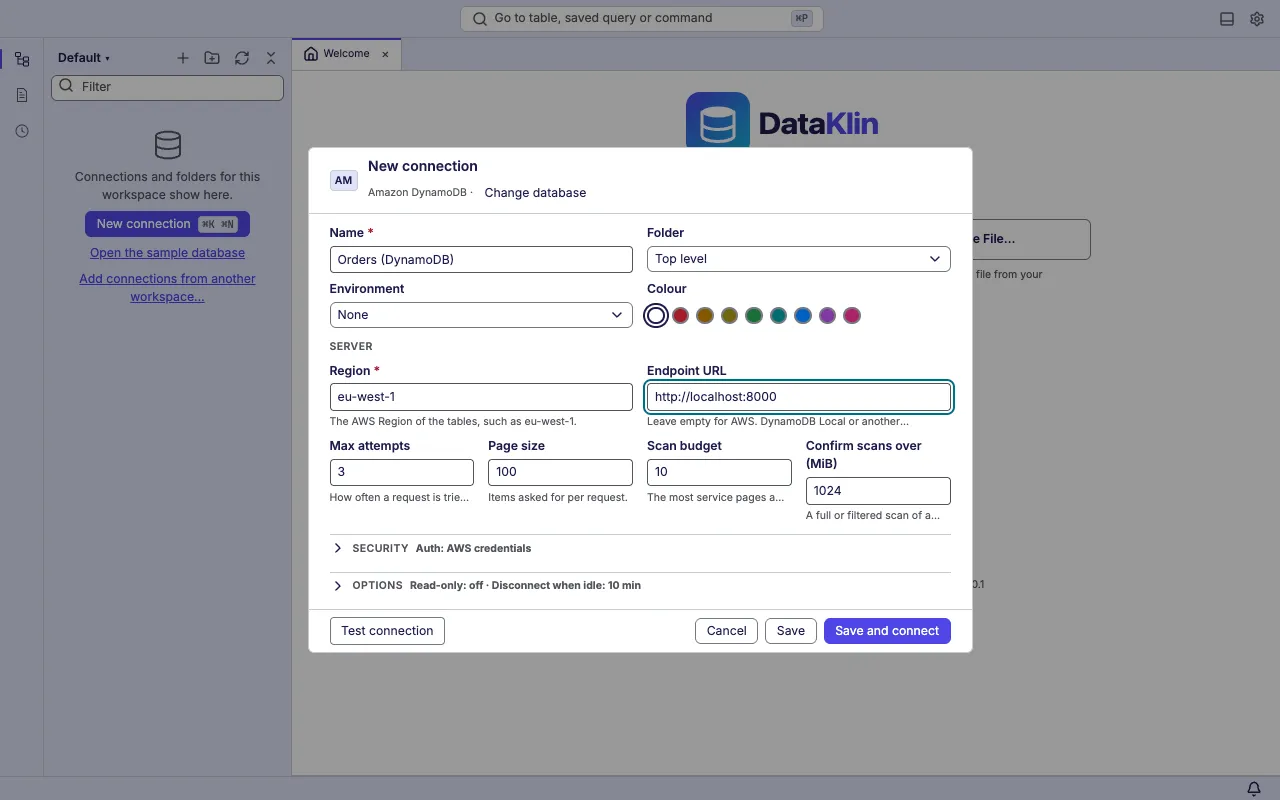
Connection fields
Section titled “Connection fields”The Connection section at the top (Name, Folder, Environment and a color) is the same for every database: see Getting started. The Server fields below are DynamoDB’s own, and Options is the collapsed section at the bottom of the dialog.
Server
Section titled “Server”| Field | What it does | Default | Example |
|---|---|---|---|
| RegionRequired | The AWS Region of the tables, such as eu-west-1. At most 64 characters. | None | eu-west-1 |
| Endpoint URL | Leave empty for AWS. DynamoDB Local or another compatible endpoint, such as http://localhost:8000; http:// only for this computer. At most 2,048 characters. | None | http://localhost:8000 |
Options
Section titled “Options”The first table is DynamoDB’s own options. The second is the options every connection has.
| Field | What it does | Default | Example |
|---|---|---|---|
| Max attempts | How often a request is tried before a throttling or transient error is reported, the first try included (standard retry mode). From 1 to 10. | 3 | 5 |
| Page size | Items asked for per request. From 1 to 1000. | 100 | 200 |
| Scan budget | The most service pages a filtered scan reads per fetch before it stops and asks you to fetch more. From 1 to 1000. | 10 | 20 |
| Confirm scans over (MiB) | A full or filtered scan of a table larger than this asks first. On a protected connection every full scan asks. From 1 to 104857600. | 1024 | 512 |
| Field | What it does | Default | Example |
|---|---|---|---|
| Read-only | Mark this connection as one that should not change data. DataKlin then refuses writes and schema changes before they reach the database. Choosing a protected environment, such as Production, ticks it for you. | Off | On |
| Disconnect when idle | Close this connection after it has sat unused. Reconnects on your next action. Choose Use default, Never, or After… and a number of minutes. | Use default | Never |
Scan budget and Confirm scans over (MiB) work with the browse bar, described in Good to know: the budget caps how much a filtered scan reads before it stops and waits for you, and the confirmation threshold decides which scans ask first.
Authentication and TLS
Section titled “Authentication and TLS”Open Security to choose how DataKlin signs in. The Authentication method is one of:
- AWS credentials: the AWS credentials DataKlin resolves for you, from a profile, IAM Identity Center (SSO), an assumed role or access keys. See AWS credentials. They are never stored with the connection.
- Local (no credentials): for DynamoDB Local. DataKlin accepts it only when Endpoint URL is on this computer, such as
http://localhost:8000.
DynamoDB has no TLS mode. An AWS endpoint always uses https, and DataKlin accepts an http:// endpoint only for a loopback address, where nothing leaves your computer.
Try it locally
Section titled “Try it locally”No AWS account to hand? Start DynamoDB Local in Docker:
docker run --name dataklin-dynamodb -d -p 8000:8000 \ amazon/dynamodb-local:3.3.2 \ -jar DynamoDBLocal.jar -inMemory -sharedDbThen connect with these values:
| Field | Value |
|---|---|
| Region | us-east-1 |
| Endpoint URL | http://localhost:8000 |
| Authentication method | Local (no credentials) |
DynamoDB Local starts with no tables. Create one with the AWS CLI, using --endpoint-url http://localhost:8000. When you’re done, remove the container with docker rm -f dataklin-dynamodb.
Good to know
Section titled “Good to know”- The browse bar opens in Query mode. Open a table or an index and the bar asks for a partition key. Give it a key and DataKlin runs a Query, which reads only that partition. Switch to Scan to read the whole table.
- A filter without a key is a filtered Scan. If you give a Query only a filter, DataKlin runs a Scan that reads every item and filters afterwards. It reads up to Scan budget pages at a time, then stops and waits for Fetch more.
- Full scans ask first. A scan of a table larger than Confirm scans over (MiB) asks before it runs, with an estimate of the read capacity units (RCU) it will use. On a protected connection every full scan asks. Plain browsing, a Query or the empty builder, never asks.
- Edits are conditional. Each change to an item is conditioned on the attributes you changed still holding the values you saw, so DataKlin doesn’t overwrite another writer’s change.
- PartiQL completion. The console completes table, index and attribute names as you type. It never reads items to find them, so it spends no read capacity.
- Read-only connections. On a read-only connection, DataKlin refuses writes. See Read-only connections.