

OpenSearch
DataKlin connects to OpenSearch 2 and 3 through its built-in OpenSearch connector, and to Amazon OpenSearch Service through the same connector. It signs in with a user name and password, a client certificate, a bearer token, an API token, AWS SigV4 or no credentials, and the URL scheme decides TLS: https uses the TLS mode you choose, and http is not encrypted.
Supported versions OpenSearch 2 and 3
- TLS
- AWS SigV4
- Request console completion
Connect
Section titled “Connect”-
Open New Connection. Click New Connection in the header of the Database Explorer, choose File › New Connection…, or press Ctrl+K, then Ctrl+N (Cmd+K, then Cmd+N on macOS). Getting started lists every way to open it.
-
Choose OpenSearch. Type
opensearchin Search connectors… and press Enter, or double-click OpenSearch. For an Amazon OpenSearch Service domain, choose Amazon OpenSearch Service instead: see Amazon OpenSearch Service. -
Enter the node URLs. Type one Node URL per line, such as
https://search-1.example.com:9200. One URL is enough for a single node or a cluster behind a load balancer. -
Check Security. Open Security to choose the Authentication method and the TLS mode. See Authentication and TLS.
-
Test the connection. Click Test connection. When it works, the server version shows beside the button. When it doesn’t, the reason shows, with Copy details. Once the connection is saved, Show Connection Log shows the full log.
-
Save. Click Save, or Save and connect to connect at once. The connection appears in the Database Explorer.
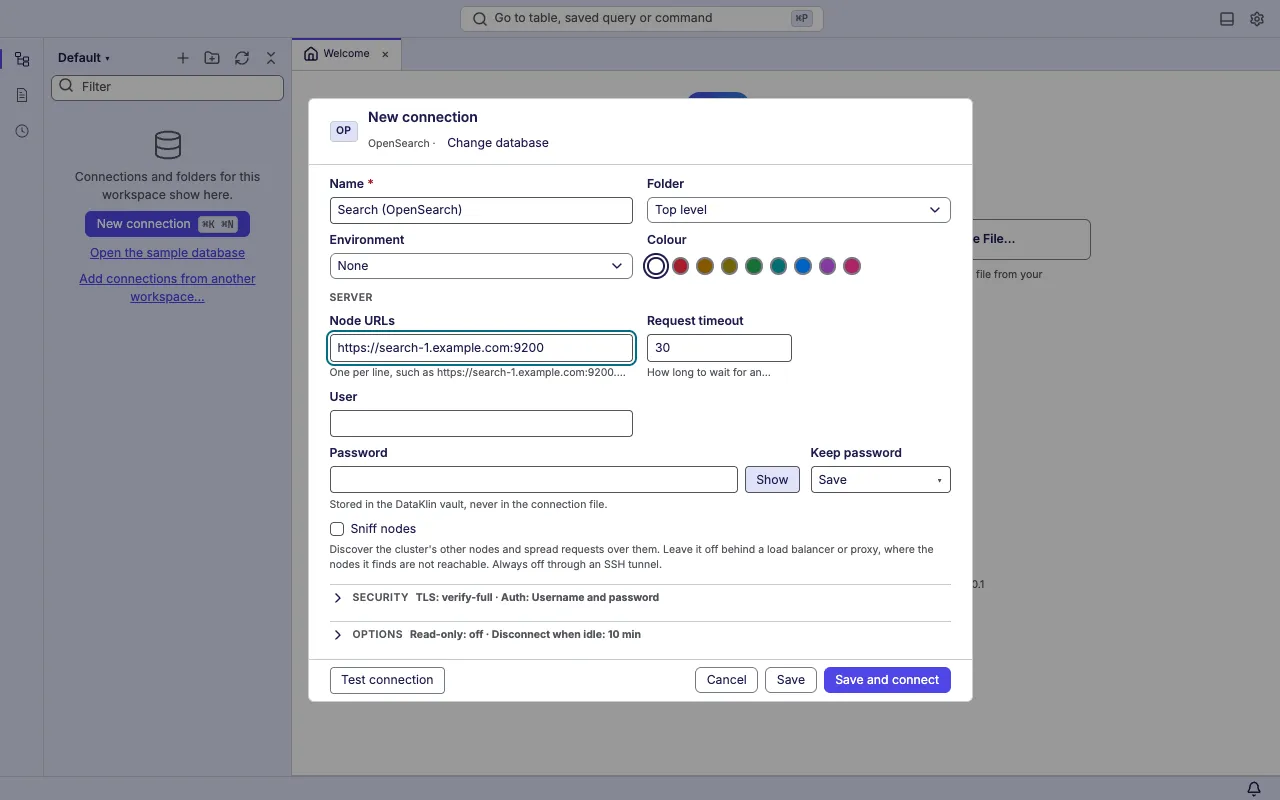
Connection fields
Section titled “Connection fields”The Connection section at the top (Name, Folder, Environment and a color) is the same for every database: see Getting started. The Server and Authentication fields below are OpenSearch’s own. Options is the collapsed section at the bottom of the dialog.
Server
Section titled “Server”The scheme of a node URL decides TLS: https uses the TLS mode in Security, and http needs Disable. A URL that disagrees with Security is refused rather than changed. A node written without a scheme or a port takes them from the TLS mode, and the port is 9200.
| Field | What it does | Default | Example |
|---|---|---|---|
| Node URLs | One per line, such as https://search-1.example.com:9200. One URL is enough for a single node or a cluster behind a load balancer. At most 8,192 characters. | None | https://search-1.example.com:9200 |
| Request timeout | How long to wait for an answer, in seconds. From 1 to 3600. | 30 | 60 |
| Sniff nodes | Discover the cluster's other nodes and spread requests over them. Leave it off behind a load balancer or proxy, where the nodes it finds are not reachable. Always off through an SSH tunnel. | Off | Off |
Authentication
Section titled “Authentication”| Field | What it does | Default | Example |
|---|---|---|---|
| UserUsername and password | The OpenSearch user to sign in as. At most 1,024 characters. | None | admin |
| PasswordUsername and password | Stored in the DataKlin vault, never in the connection file. | None | — |
| TokenBearer token (JWT) | A JWT the security plugin's jwt authenticator accepts. Stored in the DataKlin vault. | None | a signed JWT |
| API tokenAPI token | OpenSearch 3.7 or later: the token (os_…) an administrator created, sent as Authorization: ApiKey <token>. Stored in the DataKlin vault. | None | an os_ token |
Options
Section titled “Options”| Field | What it does | Default | Example |
|---|---|---|---|
| Read-only | Mark this connection as one that should not change data. DataKlin then refuses writes and schema changes before they reach the database. Choosing a protected environment, such as Production, ticks it for you. | Off | On |
| Disconnect when idle | Close this connection after it has sat unused. Reconnects on your next action. Choose Use default, Never, or After… and a number of minutes. | Use default | Never |
Authentication and TLS
Section titled “Authentication and TLS”Open Security to choose how DataKlin signs in. The Authentication method is one of:
- Username and password: the User and Password fields. Passwords are kept as Secret storage describes.
- Client certificate: you sign in with a certificate the server trusts, chosen under the TLS settings.
- Bearer token (JWT): a token that the security plugin’s
jwtauthenticator accepts. - API token: needs OpenSearch 3.7 or later. It is the token (
os_…) an administrator created, and DataKlin sends it asAuthorization: ApiKey <token>. - AWS SigV4 (IAM): your AWS credentials sign each request, for Amazon OpenSearch Service. See Amazon OpenSearch Service.
- None: no credentials, for a node that doesn’t ask for them.
The TLS mode is one of Disable, Require, Verify CA and Full verification. A new connection uses Full verification, and the node URL’s scheme has to agree: https with a TLS mode, http with Disable. With TLS on you can also choose a CA certificate, a Client certificate, the Server name and the Minimum TLS version. TLS and certificates explains each mode and certificate.
Amazon OpenSearch Service
Section titled “Amazon OpenSearch Service”Choose Amazon OpenSearch Service in Search connectors… to connect to a managed domain. It opens the OpenSearch form with the settings a domain needs already chosen: Authentication method is AWS SigV4 (IAM), the credential source is a profile, and TLS mode is Full verification.
- Paste the domain’s endpoint into Node URLs, such as
https://search-demo-abc123.eu-west-1.es.amazonaws.com. - In Security, choose the AWS profile and the Region. AWS credentials explains the credential sources, and Test AWS credentials checks them.
- Click Test connection.
AWS SigV4 needs TLS: DataKlin won’t sign requests that would go out unencrypted, so keep a TLS mode other than Disable.
Amazon OpenSearch Serverless isn’t supported. DataKlin refuses a collection endpoint (*.aoss.amazonaws.com) before it sends any request, because a collection doesn’t answer the requests DataKlin needs. Use a managed domain endpoint.
Try it locally
Section titled “Try it locally”No cluster to hand? Start a single OpenSearch node in Docker, with the security plugin off so there is nothing to sign in to:
docker run --name dataklin-opensearch -d -p 9200:9200 \ -e discovery.type=single-node -e DISABLE_SECURITY_PLUGIN=true \ -e DISABLE_INSTALL_DEMO_CONFIG=true \ -e OPENSEARCH_JAVA_OPTS="-Xms512m -Xmx512m" \ opensearchproject/opensearch:3Then connect with these values:
| Field | Value |
|---|---|
| Node URLs | http://localhost:9200 |
| Authentication method | None |
| TLS mode | Disable, because the URL is http |
The node takes a minute to start. When you’re done, remove the container with docker rm -f dataklin-opensearch.
Good to know
Section titled “Good to know”- Destructive requests ask first. A request that deletes an index, an alias or a data stream asks for confirmation before it runs. So does an
_aliasesrequest with aremove_indexaction, which deletes an index even though the request line looks like a plainPOST. See Confirming destructive statements. - Only reads are retried. After a connection error DataKlin sends a
GETorHEADagain, and never any other request: it may have reached the node, and a confirmedDELETEmust not run twice. - Read-only connections. On a read-only connection, DataKlin refuses requests that write. See Read-only connections.
- Request language completion. The console completes the methods, endpoints and fields of a request as you type.
- How browsing pages. OpenSearch 2.x pages through a scroll, and 3.3 and later through a point in time. DataKlin closes either one afterwards.