

Redis and Valkey
DataKlin connects to Redis 7.4 and later, and to Valkey, through its built-in Redis connector. It signs in with no authentication, a password, an ACL user and password, or a client certificate, and it encrypts the connection with TLS when you choose a TLS mode that fits the server’s port: a new connection to a remote server uses Full verification, which checks that the server’s certificate comes from a trusted authority and names the server.
Supported versions Redis 7.4 and later, and Valkey
- TLS
- ACL users
- Key browser
- Pub/Sub
- Key completion
Connect
Section titled “Connect”-
Open New Connection. Click New Connection in the header of the Database Explorer, choose File › New Connection…, or press Ctrl+K, then Ctrl+N (Cmd+K, then Cmd+N on macOS). Getting started lists every way to open it.
-
Choose Redis. Type
redisin Search connectors… and press Enter, or double-click Redis. The same connector serves Valkey. -
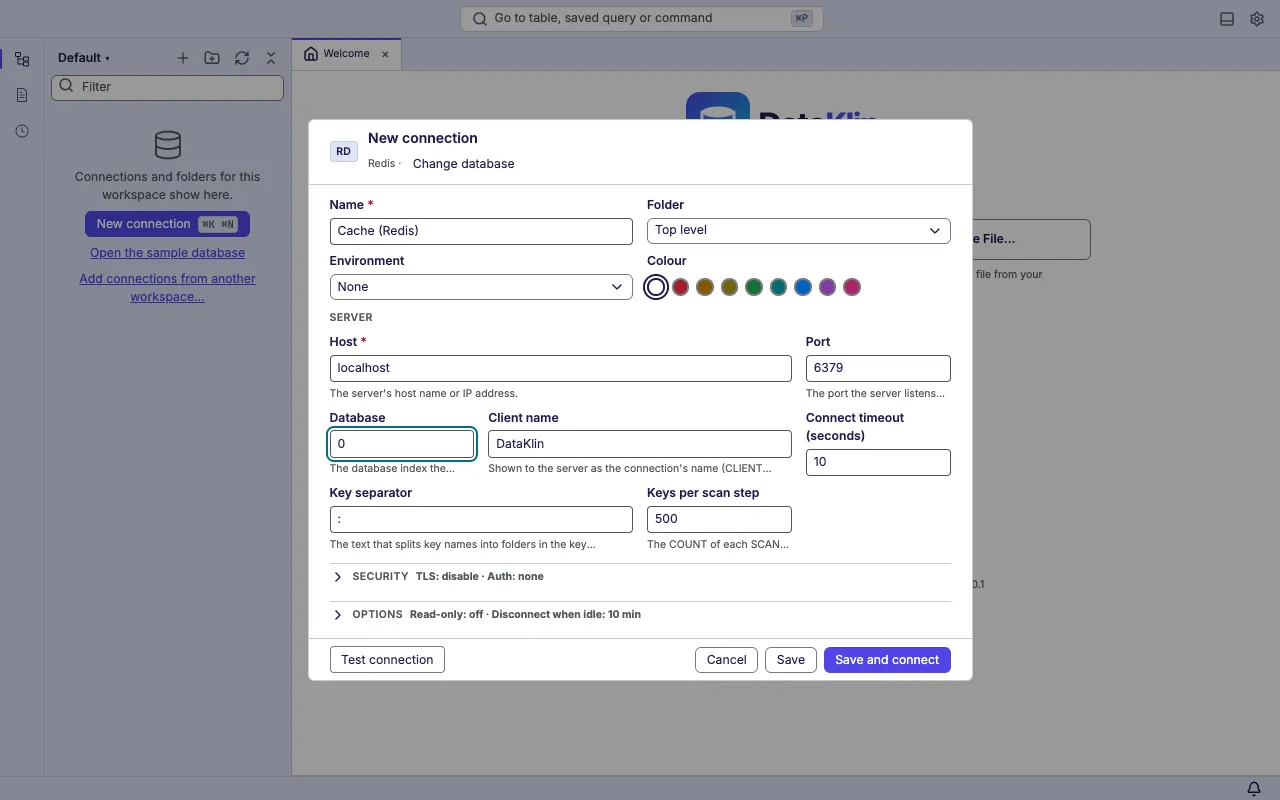
Fill in the Server section. Enter the Host, the only required field. Port and Database start at
6379and0. Add a User and a Password if the server needs them. The dialog doesn’t read a pastedredis://URL: fill in the fields. -
Check Security. Open Security to choose the Authentication method and the TLS mode. A remote host starts at Full verification;
localhostisn’t encrypted. Make the TLS mode fit the port: see Authentication and TLS. -
Test the connection. Click Test connection. When it works, the product (Redis or Valkey), its version and its mode show beside the button. When it doesn’t, the reason shows, with Copy details. Once the connection is saved, Show Connection Log shows the full log.
-
Save. Click Save, or Save and connect to connect at once. The connection appears in the Database Explorer, with its databases and their key counts.
Connection fields
Section titled “Connection fields”The Connection section at the top (Name, Folder, Environment and a color) is the same for every database: see Getting started. The Server and Authentication fields below are Redis’s own. Options is the collapsed section at the bottom of the dialog.
Server
Section titled “Server”| Field | What it does | Default | Example |
|---|---|---|---|
| HostRequired | The server's host name or IP address. | None | cache.example.com |
| Port | The port the server listens on. A TLS server usually has its own port. A server that offers TLS usually has a second port for it. The TLS mode you choose has to match the port you give. From 1 to 65535. | 6379 | 6379 |
| Database | The database index the connection starts in (SELECT). The database index the connection starts in. From 0 to 2147483647. | 0 | 0 |
| Client name | Shown to the server as the connection's name (CLIENT SETNAME), for example in CLIENT LIST. No spaces. At most 128 characters. | DataKlin | DataKlin |
| Connect timeout (seconds) | How long to wait for the server before the connection fails. From 1 to 3600. | 10 | 10 |
| Key separator | The text that splits key names into folders in the key browser's tree. In the key browser, user:42:name shows as the folders user and 42 holding the key name. Use / or . if your keys do. At most 16 characters. | : | : |
| Keys per scan step | The COUNT of each SCAN the key browser sends: how much work the server does per step. A higher number lists keys in fewer steps but makes the server do more work in each one. Keep it low on a busy server. From 10 to 10000. | 500 | 500 |
Authentication
Section titled “Authentication”| Field | What it does | Default | Example |
|---|---|---|---|
| User (ACL, optional)ACL user and password | The ACL user to sign in as. To sign in as the default user, choose Password (AUTH) instead. Required for the ACL user and password method. To sign in as default, use Password (AUTH). | None | app |
| PasswordPassword (AUTH)ACL user and password | Stored in the DataKlin vault, never in the connection file. Shown with the Password (AUTH) and ACL user and password methods. Next to it, Keep password chooses how long DataKlin keeps it: Save, Until DataKlin quits or Ask every time. | None | — |
Options
Section titled “Options”| Field | What it does | Default | Example |
|---|---|---|---|
| Read-only | Mark this connection as one that should not change data. DataKlin then refuses writes and schema changes before they reach the database. Choosing a protected environment, such as Production, ticks it for you. | Off | On |
| Disconnect when idle | Close this connection after it has sat unused. Reconnects on your next action. Choose Use default, Never, or After… and a number of minutes. | Use default | Never |
Key separator and Keys per scan step
Section titled “Key separator and Keys per scan step”The key browser lists keys with SCAN, never KEYS, so a large database doesn’t stall the server. Keys per scan step is the COUNT of each SCAN: it sets how much work the server does per step, and the browser asks for more steps as you scroll. Key separator is the text that turns key names into folders in the browser’s tree, so with : the keys user:42:name and user:42:email sit together in the folders user and 42. Change either one in the connection’s settings.
Authentication and TLS
Section titled “Authentication and TLS”Open Security to choose how DataKlin signs in. The Authentication method is one of:
- No authentication (the default): for a server with no password, such as a local one.
- Password (AUTH): the Password field, sent as
AUTHfor thedefaultuser. - ACL user and password: the User and Password fields, for a server with ACL users. User is required. To sign in as the
defaultuser, choose Password (AUTH) instead. - Client certificate: the server identifies you by the certificate you choose under TLS, and DataKlin sends no
AUTH.
Passwords are kept as Secret storage describes.
The TLS mode is one of Disable, Require, Verify CA and Full verification. A new connection to a remote host uses Full verification; one to localhost, 127.0.0.1 or ::1 isn’t encrypted. Redis doesn’t negotiate TLS on a port: a port speaks TLS or it doesn’t. So there is no Prefer mode, and the mode must match the port. Use Disable for the plain port (6379 by default) and a TLS mode for the server’s TLS port, or the connection won’t open. With TLS on you can also choose a CA certificate, a Client certificate (a key and certificate, or a PKCS#12 file), the Server name and the Minimum TLS version. TLS and certificates explains each mode and certificate.
Try it locally
Section titled “Try it locally”No server to hand? Start Redis in Docker:
docker run --name dataklin-redis -d -p 6379:6379 redis:8Or start Valkey, which the same connection settings reach:
docker run --name dataklin-valkey -d -p 6379:6379 valkey/valkey:9Then connect with these values:
| Field | Value |
|---|---|
| Host | localhost |
| Port | 6379 |
| Database | 0 |
| Authentication method | No authentication, the default |
| TLS mode | Disable, the default for localhost |
When you’re done, remove the container with docker rm -f dataklin-redis (or dataklin-valkey).
Good to know
Section titled “Good to know”- User is required for ACL sign-in. If a User field’s description above says it can be left empty, ignore that: with ACL user and password you must enter a User, and to sign in as
defaultyou choose Password (AUTH). - Refused console commands. The console is one connection that the key browser, the value pane and edits rely on, so it refuses
SELECT,AUTH,RESETandHELLOwith arguments. To work in another database, open it in the Database Explorer, or set Database in the connection’s settings. A bareHELLOruns.SUBSCRIBE,MONITOR,SYNCandPSYNCare refused too, since they would leave the console unable to answer. MULTIruns as you type it.MULTI,EXECandWATCHwork in the console, because no other part of DataKlin shares its connection.- Checked edits need
@transaction. An edit in the value pane is checked against the value you read, so a change made meanwhile isn’t overwritten. It usesWATCH,MULTIandEXEC. A user whose ACL lacks the@transactioncommands can’t make those edits. - Read-only refuses scripts, too.
EVAL_RO,EVALSHA_ROandFCALL_ROcan’t write, but a script can still stall a production server, so a read-only connection refuses them with the other scripts. Run them on a connection that isn’t read-only. See Read-only connections. - Destructive commands ask first.
FLUSHALL,FLUSHDB,CONFIG SET,SHUTDOWNand similar commands ask for confirmation before they run, a protected environment such as Production always asks, and deleting a key in the key browser always asks. See Confirming destructive statements. - Pub/Sub is a live feed, not a console command. Open the Pub/Sub tab from the Database Explorer to subscribe to channels and patterns, watch messages, pause, filter and publish. Redis keeps no message for a subscriber that wasn’t listening, so a message sent while you were disconnected is lost; use streams when you need delivery.
- Key completion. After a read command such as
GET, the console completes key names. It finds them with a short, boundedSCANon a separate connection, neverKEYS, so it can’t stall the server. On a protected connection it completes key names only when you press Ctrl+Space. Offline, it still completes command names and options. - Cluster mode. A server with cluster mode on connects to the node you name, and the key browser shows only that node’s keys.