History and the Connection Log
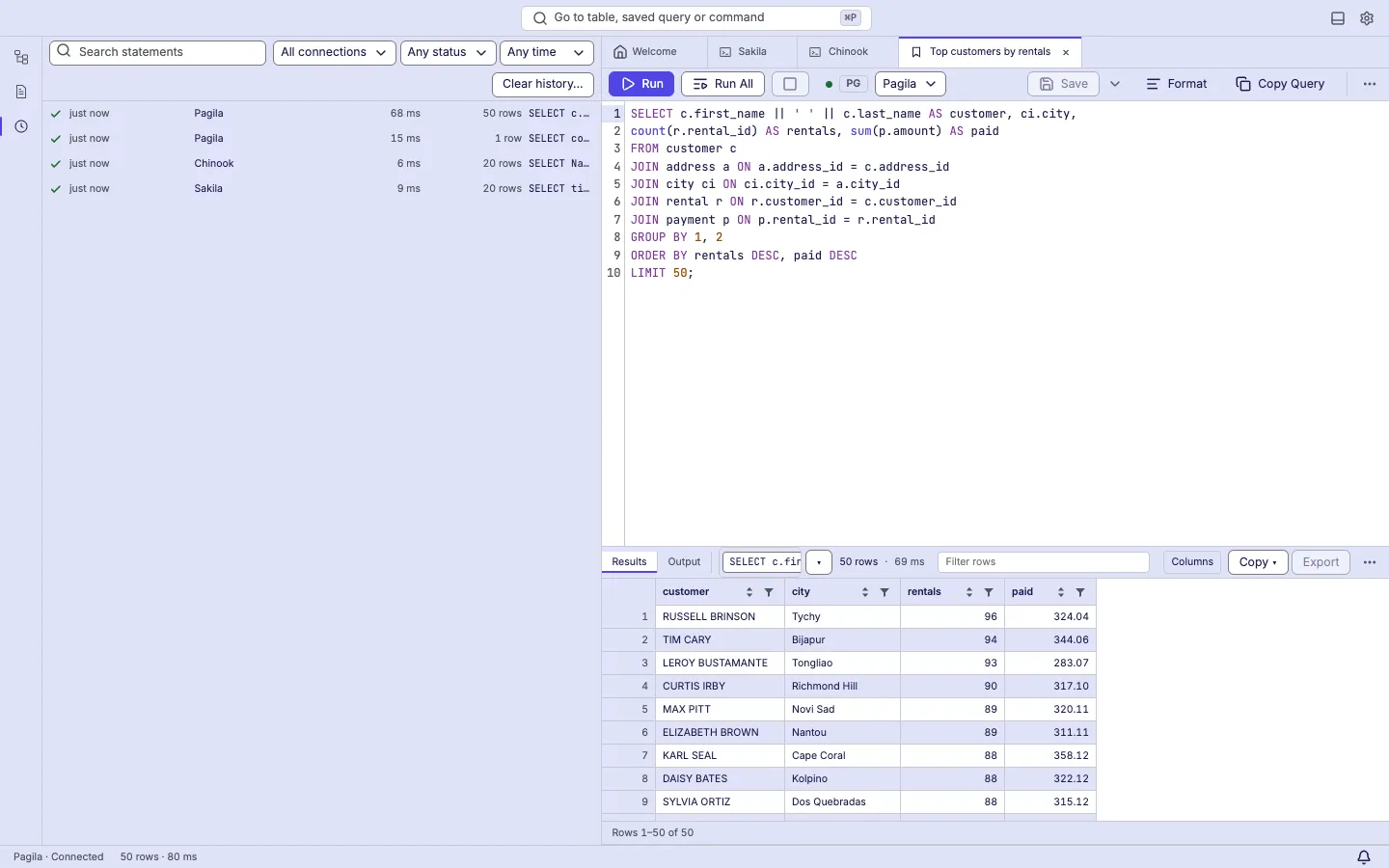
DataKlin keeps a History of the statements you run: the SQL, the connection, when it ran, how long it took, how many rows it returned and whether it failed. It never stores the results. The history is kept in DataKlin’s local app database on your computer, so it’s still there after a restart.
Where to find it
Section titled “Where to find it”- History on the activity rail opens it as a view in the sidebar, so you can browse it without the bottom panel.
- The History tab of the bottom panel shows the same list. Show or hide the panel with Ctrl+J (Cmd+J on macOS). Press Ctrl+Shift+H (Cmd+Shift+H on macOS), or run History: Show in the command center.
- ⋯ › Show History on a console’s toolbar shows the history of that console’s connection.
It lists the newest statements first. It starts with the connection of the console you’re working in, and you can switch to All connections with its Connection filter. Another filter narrows by status (Any status), and the filters are chips you can clear.
Hover or focus a row to get Copy Query and Open in Console.
Clearing and stopping
Section titled “Clearing and stopping”To clear it, click Clear history… in the History view, or run History: Clear History… from the command center. When the view shows one connection, you choose that connection or all connections. DataKlin asks before deleting, and clearing can’t be undone. Deleting some history entries, or clearing one connection’s history, can leave fragments of the removed queries in DataKlin’s local database file until it is compacted. Clearing all connections leaves nothing behind.
While DataKlin is running, the history database’s write-ahead log (app.db-wal) grows with each statement you run. It shrinks when you clear or prune history, or at the next start after a crash.
To stop recording, turn off Record query history on the History tab of Settings. To stop it per connection instead, uncheck the connection under Record history for these connections on the same tab. Entries to keep and Days to keep set how much history is kept.
The Connection Log
Section titled “The Connection Log”The Connection Log tab of the bottom panel shows one connection’s events together with the queries run on it, newest first. It has its own connection selector and a filter. Failures expand to show the server’s message. Open it with Show Connection Log in the command center or the status bar’s connection menu, or with Show log on a failed connection. See Idle disconnect and the Connection Log for the events and how long they’re kept.