

Database Explorer
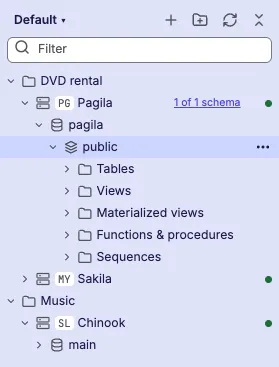
The Database Explorer shows the current workspace’s connections as a tree, inside their folders. Folders come first, then connections, sorted by name.
The header
Section titled “The header”The workspace’s name is at the left of the header. Click it to switch workspaces (see Workspaces and saved queries). At the right are four buttons, always drawn, each with a tooltip that shows its shortcut:
- New Connection opens the connection dialog. From a selected folder, the new connection goes into that folder.
- New Folder.
- Refresh.
- Collapse All.
Under the header, type in Filter connections to find one.
Connections
Section titled “Connections”A connection row shows an engine badge (PG, MY, SL, CA), its name, its environment and a dot for its state: Connected, Connecting…, Disconnected, Disconnected (idle) or Failed. A read-only connection shows a lock. The time of the last refresh is in the row’s tooltip.
- Expand a connection to connect to it, or double-click it, or select it and press Enter. If DataKlin doesn’t keep its password, it asks for it.
- If a connection fails, its row shows the error. Choose Retry to try again, Dismiss to close the notice and return the connection to disconnected, or Show log to open its Connection Log.
- Every row shows a ⋯ button when you hover it or focus it. It opens the same menu as a right-click or Shift+F10.
- The menu has Connect or Disconnect, New Console, Edit, Duplicate, Rename…, Move to Folder, Delete, and a way to test the connection.
An empty workspace shows one sentence with New connection (Ctrl+N, Cmd+N on macOS), and links to Open the sample database and Add connections from another workspace….
Objects
Section titled “Objects”Under each schema are Tables, Views, Materialized views, Functions & procedures and Sequences. Expand a table to see its columns, indexes, constraints and triggers. Type while the tree has focus to filter it.
- Double-click a table or view, or press Enter on it, to open its data.
- Right-click an object for more: Show Definition opens its DDL, Copy Definition copies it without opening it, and Copy Name and Copy Qualified Name copy its name. New Console Here opens a console on that connection.
- Press F5 to refresh the selected item, or Shift+F5 to refresh everything.
Folders
Section titled “Folders”Create a folder. Click New Folder (or press Ctrl+K, then F; Cmd+K, then F on macOS). A new folder row appears at the selected level, with its name field ready. Type the name and press Enter. Escape cancels. An empty name, or one that another folder at that level already uses, shows the reason under the field and keeps the field open.
Rename. Select a folder or a connection and press F2, or choose Rename…. The name becomes a field in place.
Move by dragging. Press on a connection and drag it. Select several first, with Ctrl-click (Cmd-click on macOS) or Shift-click, to drag them together. Drag a folder to move it with what’s in it.
- The folder under the pointer highlights. A closed folder opens after about half a second, so you can drop into a subfolder.
- Drop on the empty area of the tree to move to the top level.
- You can’t drop a folder into itself or into one of its own subfolders: nothing highlights.
Move to Folder. Choose Move to Folder in the menu of a connection or folder, or press Ctrl+K, then M (Cmd+K, then M on macOS). It lists every folder, Top Level and New Folder…. It works on a selection of several connections too.
Undo. A move, a rename and a folder delete take effect at once and show a toast with Undo for 10 seconds.
Delete a folder. Its connections and subfolders move to the folder above it. DataKlin never deletes a connection when you delete a folder.
Select several. Ctrl-click (Cmd-click on macOS) adds to the selection and Shift-click selects a range. Connect, Disconnect, Move to Folder and Delete then act on all of them.
Keyboard
Section titled “Keyboard”| Key | Action |
|---|---|
| Up and Down | Move through the tree |
| Right and Left | Expand and collapse |
| Enter | Connect, or open a table’s data |
| Space | Select the row |
| Shift+F10 | Open the row’s menu |
| F2 | Rename |
| F5 and Shift+F5 | Refresh the item, and refresh everything |