

Results
Each statement’s results open in the grid below the console, one tab per result.
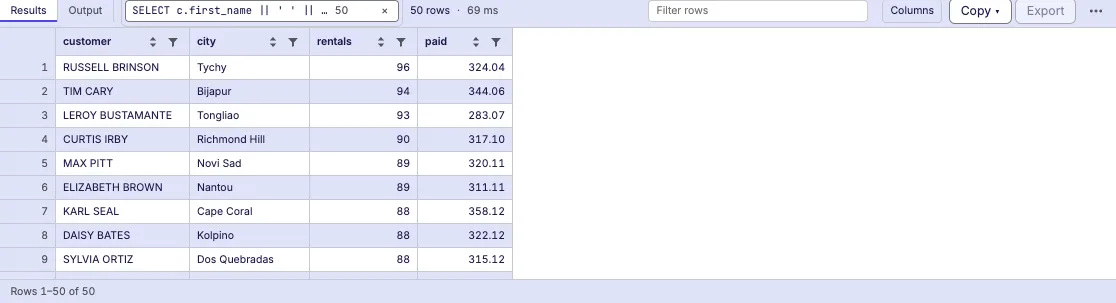
The toolbar
Section titled “The toolbar”One row holds:
- The result tabs (Result 1, Result 2, … and Output), with an overflow menu when there are many, then a summary such as
8 rows · 6 ms. - Filter rows: type to show the rows where any column contains your text. This filters the rows loaded so far, and the toolbar says so. Ctrl+F (Cmd+F on macOS) moves to it while the grid has focus.
- Copy, a menu (see below).
- Export, which is drawn but not available yet: export is planned for a later release.
- Columns: show or hide columns.
- ⋯: Pin, Close result, Re-run, and Show Definition when the result comes from one table.
The footer shows the rows you’re looking at and the total known so far, for example Rows 1–500 of 12,480. Select cells and it also shows the selection, such as 2 rows selected · sum 348.00 when you select one numeric column.
Results come a page at a time. The grid shows one page of rows (500 by default) and loads the next page when you reach the end of it. Change the size in Settings › Results.
Select cells or rows and press Ctrl+C (Cmd+C on macOS) to copy them as tab-separated text, which pastes straight into a spreadsheet. The Copy menu offers:
| Item | What it copies |
|---|---|
| Copy | The selection, tab-separated |
| Copy with Headers, Ctrl+Shift+C (Cmd+Shift+C on macOS) | The same, with a header row |
| Copy as CSV, JSON, Markdown, INSERT | The selection in that format. Values are escaped for the format |
| Copy Query | The statement that produced this result |
| Copy All Rows | Every row loaded, and the menu says how many |
The button reads Copied for a moment. A copy that takes longer than a second shows its progress in the status bar. Default copy format in Settings › Results sets what plain Copy writes when you select more than one cell.
Copy Query is also in the right-click menu and in the result tab’s menu.
Context menus
Section titled “Context menus”Right-click a cell, or press Shift+F10, for:
- Copy, Copy with Headers and Copy as (the formats above)
- Copy Column Name
- Filter by This Value
- Open Value, for a long value
- Copy Query
Right-click a column header for Sort Ascending, Sort Descending, Filter…, Hide Column, Fit Width and Copy Column Name.
Each row has a number, frozen at the left. Click it to select the row. Columns start at a width that fits their content; one you resize keeps its width.
Show a table’s definition
Section titled “Show a table’s definition”When a result comes from one table, choose ⋯ › Show Definition to open that table’s definition. See Table data.
While the connection is down
Section titled “While the connection is down”If the connection dropped, Re-run connects first. If reconnecting fails, one message shows where the results would be: Couldn’t reconnect to the connection’s name, why, and what to do, with the server’s own message in monospace and Retry, Edit connection, Show Connection Log and Copy details. The rows you already had stay readable.